


Concepts: Sketch, Note, Draw
4.41.44K Reviews
App Specs
- Version
- 2026.06.4
- Updated On
- License
- Free
- Downloads
- 5,000,000+
- Developer
- TopHatch, Inc.
- Categories
- Art & Design
- Platform
- Android, iOS
Screenshots
 Analysis by AppCompare
I usually know whether a creative app is going to stick after the first few days: the novelty of a blank canvas wears off, and what matters is whether I remember to open it when an idea appears. Concepts: Sketch, Note, Draw makes a strong first impression because it gives sketches, handwritten notes, and rough plans room to sit together. The real test is whether that open-ended space helps me work regularly or leaves me wishing for a more focused tool.
The first week: an inviting place to think
Concepts is an art and design app from TopHatch, Inc. Its main appeal is that I can begin without deciding whether an idea deserves a formal document, a polished illustration, or a quick scribble. I can put a few words beside a diagram, move across the canvas, and keep developing the thought without having to start over on a new page. That freedom feels useful from the outset, especially when I am brainstorming rather than producing a finished piece.
The first-week experience is easy to enjoy. The uncluttered workspace keeps attention on the work, while the drawing tools give a sketch more character than a note made with a standard text keyboard. I can try colors, make marks, and zoom in when a detail needs attention. For someone who thinks visually, the canvas makes it natural to connect an annotation to the exact part of a drawing it describes.
What makes the canvas useful beyond a quick doodle
I find the canvas most useful when I treat it as a place to work through a thought, not just a space to fill. For instance, keeping a rough version beside its alternatives makes it easier to see how an idea changed without polishing every mark. That practical approach also raises the next question: what helps the workspace stay readable as it grows?
Room to develop an idea
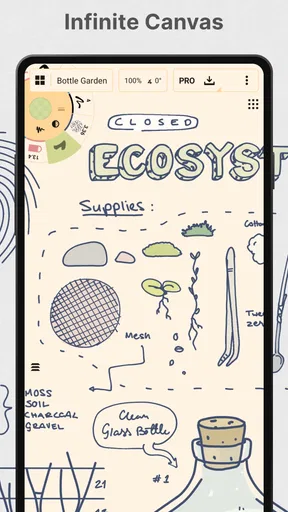
The infinite canvas is more than a novelty when I use it with some structure. I can begin with a central question, place possible answers around it, then extend one promising branch without squeezing the rest of the work into a fixed sheet. That suits early planning, mind maps, loose storyboards, and design explorations where the order of ideas changes as I go.
A practical trick is to give separate areas of the canvas clear jobs: one for the first rough sketch, another for alternatives, and a third for decisions or reminders. That keeps a sprawling page easier to revisit without forcing me to make every mark neat. The trade-off is that an open workspace needs a little personal organization; if I keep adding material without visual landmarks, finding one note later can take longer than flipping through a short, ordered document.
Using it in an ordinary day
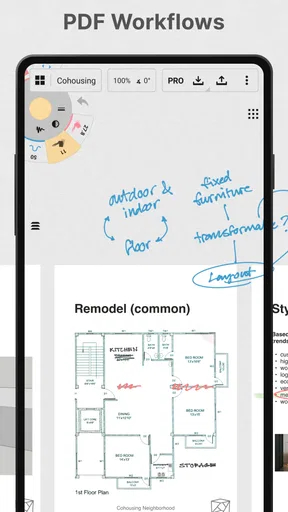
Imagine I am planning a small room change between errands. I can draw a rough floor plan, add measurements or reminders by hand, and sketch two furniture arrangements in separate parts of the same canvas. Later, I can return to the idea and add a note beside the version I prefer. This is the kind of modest, recurring task where the app can earn a place in my routine: it turns a fleeting thought into something I can inspect and revise.
Worth Reading Before You Choose

Flipboard Shows What News Apps Must Do Beyond the Feed

Switching to Android Auto Means Rethinking Your Driving Routine

Google Calendar Makes a Crowded Week Easier to Manage

Ludo King Makes the Most of the Minutes Between Plans

Baby Panda World Brings Quick Play to Modern Phones, but Its Game Library Feels Busy

ESPN’s Live Game View Makes Following Close Games Easier
The same approach works for a student mapping a biology process, a designer collecting layout options, or a teacher preparing a visual explanation. The useful distinction is that these are working surfaces, not necessarily finished documents. I would use Concepts to explore and explain an idea, then choose a more specialized tool if the next step demands extensive text formatting, precise page layout, or a formal presentation.
Where it fits among creative apps
Compared with a conventional note-taking app, Concepts is better suited to information that depends on spatial relationships. A note app may be quicker for a shopping list, a long block of class notes, or searchable text; this canvas is more satisfying when arrows, sketches, and handwritten labels carry the meaning. Against a page-based drawing app, the ability to keep moving around gives brainstorming more breathing room, though a fixed-page workflow can be easier when the goal is a finished composition with known boundaries.
It also occupies a different middle ground from a dedicated vector-design or illustration program. I find the flexible canvas useful for roughing out shapes and communicating a visual direction, but people who need a tightly controlled production pipeline may prefer software built around that specific output. Choosing Concepts makes most sense when the work regularly shifts between drawing, annotating, and planning rather than staying in one lane.
Learning the tools without turning setup into a project
There is a small learning curve in deciding which tools deserve a place in your regular workflow. A broad selection of pens and brushes can make experimentation enjoyable, but switching among them too often can interrupt a thought. I would start with a simple, repeatable setup: one mark for rough outlines, one for notes, and a limited set of colors for emphasis. Once those choices feel familiar, trying more styles becomes a deliberate decision rather than a distraction.
That restraint matters because a visually rich canvas can become harder to read if every note uses a new color or every idea gets a different brush. I treat color as a code—for example, one shade for questions and another for decisions—rather than decoration alone. It makes a board easier to scan later and helps the app remain useful after the initial urge to test every option fades.
Sharing work and moving between devices
When I need to show someone a sketch, exporting it as an image or PDF gives me a practical way to share a snapshot of the work. That is handy for sending a room plan, a diagram, or a visual note to someone who does not need to edit the original. Before sending, I would check the canvas framing and make sure the important area is visible; a freely arranged workspace may need a little thought to present clearly on a conventional page or screen.
Being able to sync projects across devices can also help when an idea starts on one screen and continues on another. I would still treat a shareable export as a useful handoff when the recipient only needs to view the result, rather than assuming that every collaborator wants to work inside the same canvas. For group editing or document review, a tool designed specifically around shared workflows may be a better match.
What to expect from regular use
Concepts is free to install, and its Everyone age rating makes it accessible for a broad audience. It has a 4.2 average from around 23,000 ratings, with over 5 million installs; those figures suggest a substantial audience, but they do not tell me whether its flexible style will fit a particular person’s habits. In-app purchases range from $1.99 to $29.99 per item, so I would begin with the free experience and decide whether a paid option solves a real need before spending.
The current version is 2026.01.1, and the app runs on Android 8.0 or later. That gives prospective users a simple compatibility check to make before building a workflow around it. The more important day-to-day question is whether drawing and handwriting are comfortable on the device you actually use: an expansive canvas is appealing, but smaller screens can make detailed work feel less relaxed than a tablet-sized workspace.
Keeping the habit light
The ongoing maintenance burden is mostly about keeping projects understandable, not about maintaining a complicated system. I would use clear names for canvases and avoid treating every stray thought as a new sprawling board. A quick weekly look through active work can be enough to pick out unfinished ideas worth continuing and leave the rest alone. If that small review becomes a chore, the app may be carrying more ideas than I can realistically use.
There is another trade-off in putting notes and drawings in one place: the convenience can make it tempting to use the canvas for everything. I would not replace a dependable text notebook if I rely on fast search, structured long-form writing, or a tidy record of many pages. Concepts is strongest when visual thinking is central, not when a blank canvas is simply a less familiar way to type.
Performance, comfort, and fatigue
On a phone and a tablet, the app felt responsive during my testing, and the drawing interaction made it easy to move between a broad view and smaller details. That responsiveness matters because a pause between thought and mark can break the flow of a sketch. A larger canvas can also encourage long sessions, so I would still take breaks rather than treating a comfortable drawing experience as a reason to keep working indefinitely.
The main source of fatigue for me is not a lack of space but too much space without a clear purpose. An unbounded board can become visually scattered, and zooming around is not always as quick as opening a short, neatly arranged note. There is also a natural limit to how much I want to customize tools before I begin. If I spend more time arranging brushes and colors than capturing ideas, a simpler app is doing its job better for that task.
Who is likely to keep using it
I would recommend trying Concepts if you regularly explain ideas with a mix of sketches and words, make visual plans, or prefer to think by moving pieces around. Students who draw diagrams beside annotations, people who plan spaces or projects, and hobby artists who like an unrestricted working area are likely to find recurring value in it. Its appeal is not that it makes every task easier; it is that several visual tasks can happen on the same flexible surface.
I would steer someone toward a traditional notes app for mostly typed material, a page-focused drawing tool for compositions that need a defined format, and a specialist design program for demanding production work. Those alternatives are not failures of Concepts; they simply match different habits. The best choice depends on what I need to do most often, not on how impressive a tool feels during the first session.
Features That Stand Out
Let’s talk features because this app is packed with them. First up, the infinite canvas. Yes, you heard me right. You can pan and zoom to your heart’s content, making it perfect for brainstorming sessions or detailed artwork. No more running out of space or flipping through pages!
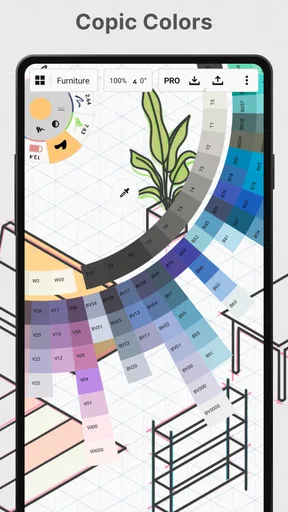
Another highlight is the variety of brushes and pens available. From pencils to airbrushes, the app mimics real-world tools with surprising accuracy. And if you’re a sucker for customization, you’ll love the color wheel that allows you to mix and match shades effortlessly. It’s like having a portable art studio in your pocket.
Performance and Usability
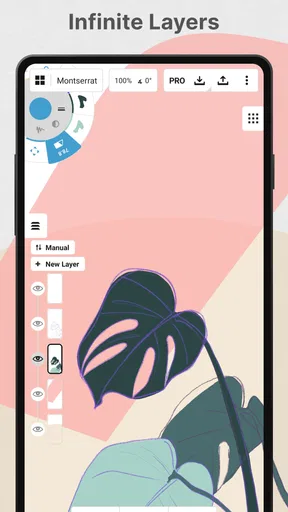
I’ve tested the app on both a smartphone and a tablet, and I have to say, it performs like a champ. The responsiveness is top-notch; every stroke and note feels fluid and natural. The app doesn’t stutter or lag, even when I’m working on a large canvas with multiple layers. Plus, the battery consumption is surprisingly low, which is a big plus for those long creative marathons.
Collaboration and Sharing
In today’s connected world, sharing your creations is almost as important as creating them. Thankfully, Concepts makes it super easy to export your work in various formats like PNG, JPG, or PDF. Whether you’re sending a quick sketch to a friend or sharing notes with a colleague, the options are plenty. And if you’re into real-time collaboration, you can sync your projects across devices, ensuring you’re always up-to-date.
Who Will Love This App?
If you’re an artist, designer, or just someone who loves to jot down ideas, this app is a dream come true. It caters to both professionals and hobbyists, offering a versatile platform for creativity. Even if you’re not artistically inclined, the note-taking features alone make it worth a look.
For students, the ability to sketch diagrams and take notes simultaneously is a game-changer. Professors and teachers can use it to create engaging lesson plans, while business professionals can map out projects or brainstorm ideas on the go.
Final Thoughts
In a world filled with specialized apps, Concepts: Sketch, Note, Draw stands out by offering a little bit of everything. It’s a testament to how technology can simplify our creative processes, allowing us to focus on what truly matters: our ideas. Whether you’re doodling for fun or working on a professional project, this app provides the tools to bring your visions to life.
So, if you’re tired of switching between apps to get things done, give Concepts a try. It might just become your new best friend in the digital art and note-taking world. Happy creating!
Pros
- User-friendly interface for quick sketching.
- Wide range of brushes for creativity.
- Seamless cloud sync across devices.
- Supports high-resolution exports.
- Intuitive layer management.
Cons
- Limited text formatting options.
- Occasional lag with large files.
- No offline collaboration feature.
- Ads in the free version can be intrusive.
- Limited color palette in the free version.
FAQs for Concepts: Sketch, Note, Draw
What features does Concepts: Sketch, Note, Draw offer?
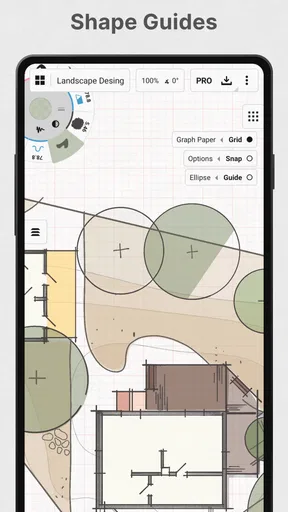
Concepts: Sketch, Note, Draw is a versatile application designed for creatives who want to sketch, take notes, and draw with precision. It features a flexible canvas, vector-based strokes, a wide range of brushes, and color palettes. The app supports layering, which is perfect for complex designs, and offers an infinite canvas for expansive projects.
Is Concepts available on both Android and iOS?
Yes, Concepts: Sketch, Note, Draw is available for both Android and iOS devices. The app is optimized for tablets and smartphones, allowing users to create on the go. It supports stylus input, making it ideal for artists who prefer a natural drawing experience on their mobile devices.
Does the app offer any in-app purchases or subscriptions?
Concepts: Sketch, Note, Draw is free to download, but it offers in-app purchases and subscription options. Users can buy additional features like advanced brushes, layer packs, and professional tools. A subscription unlocks all premium features, providing a more robust experience for professional users.
Is Concepts suitable for professional use?
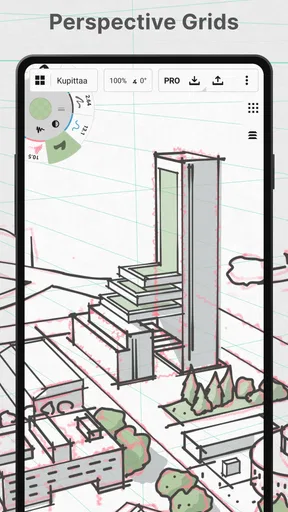
Absolutely, Concepts is highly regarded among professionals due to its precision and versatility. Its vector-based drawing allows for easy adjustments and scalability of designs. The app is used by architects, designers, and artists who need a reliable digital tool for creating detailed and intricate work.
Can I export my work from Concepts to other formats?
Yes, Concepts supports exporting your creations in various formats such as PNG, PDF, SVG, and more. This makes it easy to share your work across different platforms or use it in other applications. The app's exporting capabilities ensure that your designs maintain their quality and integrity.


